Network settings
- SSID
- Choose a detected network or type its exact name. Hidden networks can be entered manually.
- Network password
- Enter the Wi-Fi password. Leave it blank only for a network that genuinely has no password.
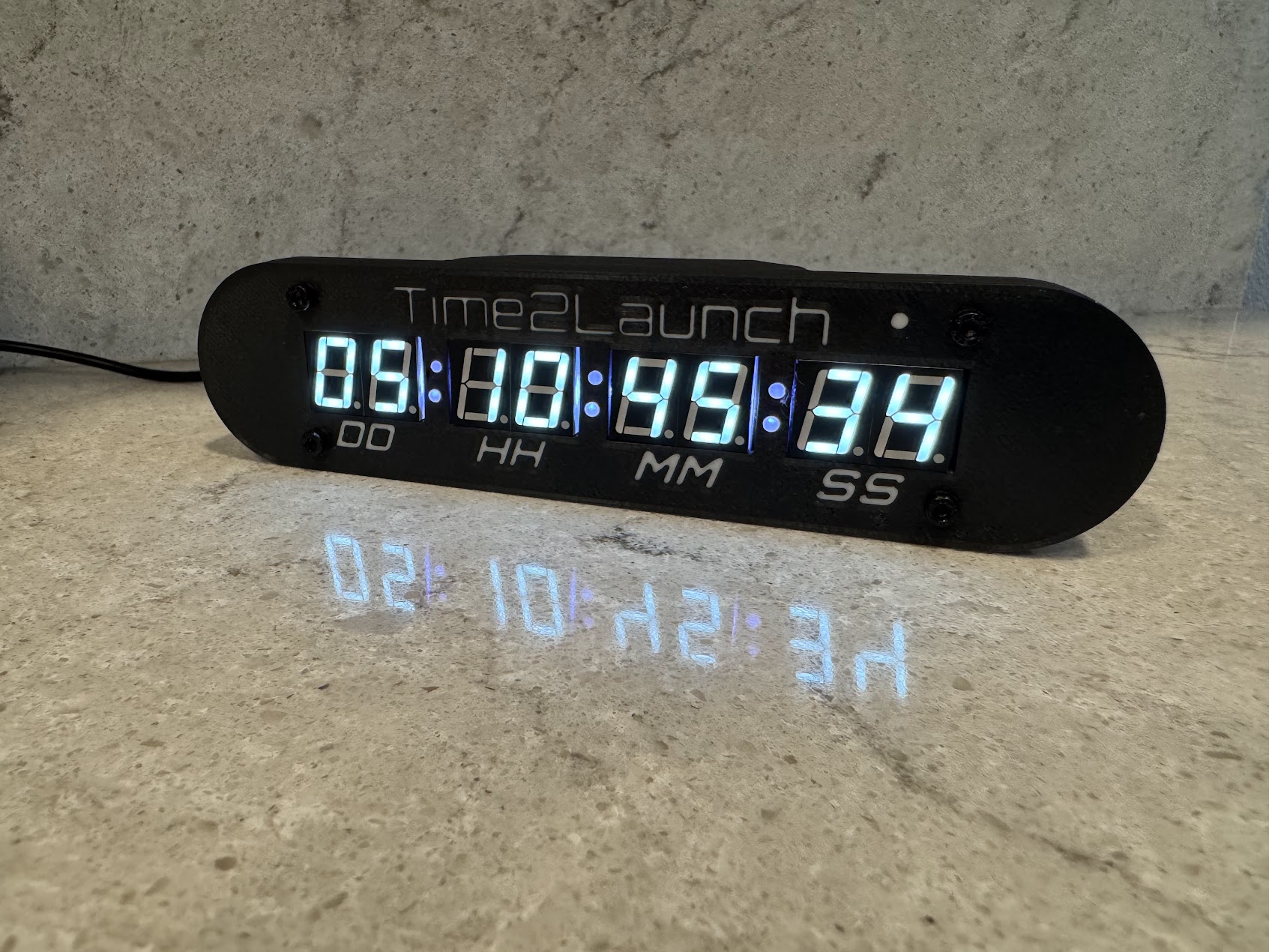
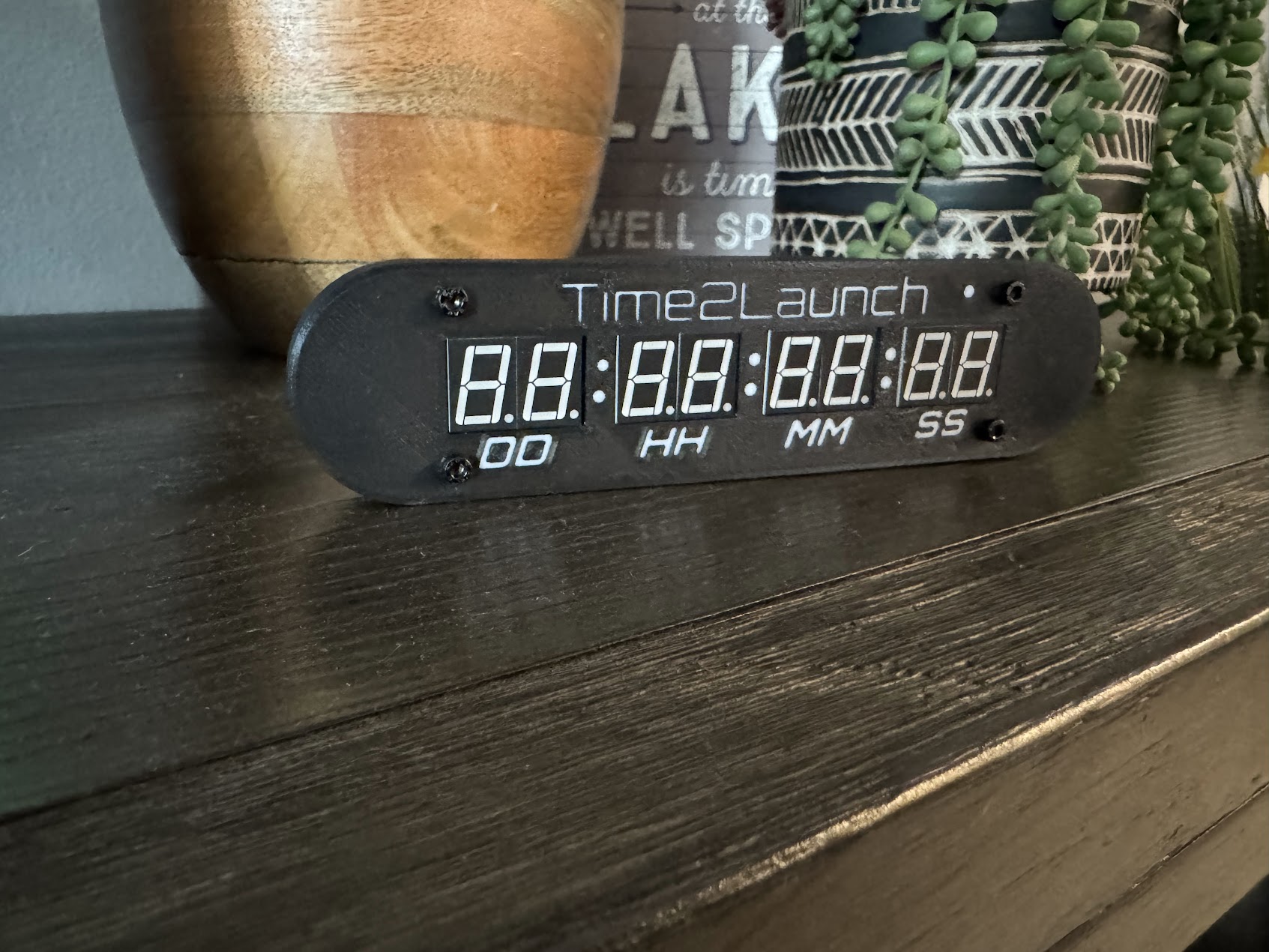
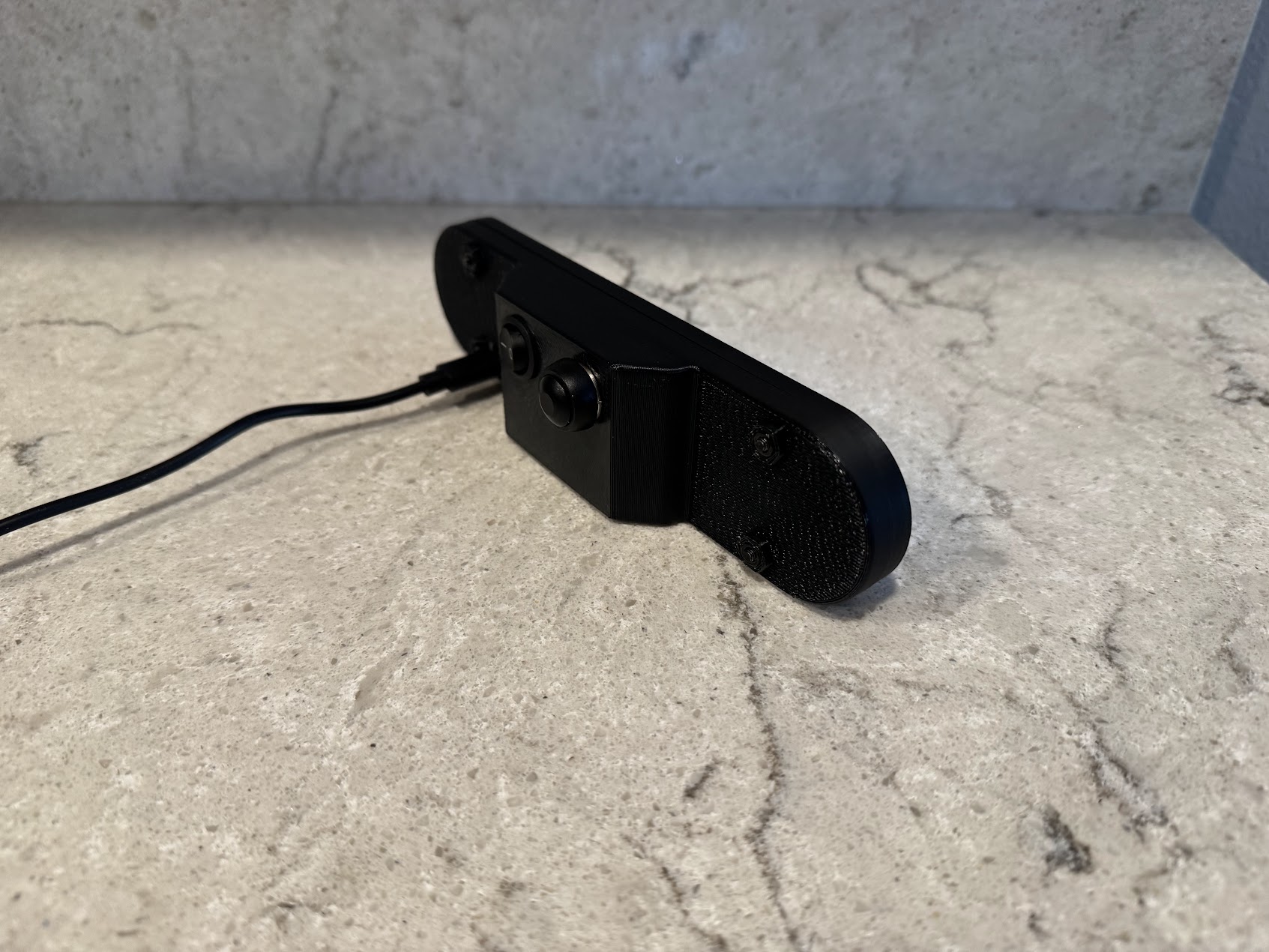
Bring the excitement of Mission Control to your desk with Wi-Fi-connected countdowns based on published launch schedules aggregated by The Space Devs and delivered through Time2Launch.
Launch dates and times can change and depend on third-party data availability. Time2Launch is an independent product and is not affiliated with or endorsed by NASA, SpaceX, ULA, or The Space Devs.
Complete the guided Wi-Fi setup in four steps.
Plug in the device. It will automatically enter setup mode, cycling through Setup, IPAddr, and 192.3.2.1 on the display.
On your phone or computer, connect to the new Wi-Fi network named LAUNCH-TIMER-XXXXX.
Open a web browser and navigate to 192.3.2.1.
Enter your home Wi-Fi credentials and select your preferred launch preset (e.g., NASA, Florida launches, or SpaceX only). Save, and you're ready for liftoff!
Download the latest two-page tri-fold manual for setup, display messages, LED indicators, factory reset instructions, and troubleshooting.
PDF · Manual version 11.0
Configuration reference
Most owners only need Wi-Fi, a launch filter, and display brightness. The remaining controls are there for special events, custom integrations, and long-term flexibility.
Select the launches you want the timer to follow: global, Florida, California, United States, crewed, SpaceX, or NASA. The timer selects the next scheduled launch currently available in the data that matches your selection.
A narrow filter can legitimately produce NO LAUNCHES when nothing matching it is currently scheduled.
Set the LED display from 0% to 100%. The choice is stored on the timer and remains in effect after a restart. A setting of 0% intentionally blanks the digits while the timer continues running.
Use Custom Time runs a one-time countdown to a future GMT time. Use Custom ID asks the Time2Launch service for one specific launch identifier. These modes are intended for special cases and cannot be enabled together.
Advanced Settings
Advanced controls are hidden and disabled by default. Check Edit Advanced Settings before making changes. This extra step prevents an accidental tap from replacing a working data source.
The timer normally asks Time2Launch first. If that request fails or returns unusable data, firmware 1.2.2 and newer automatically tries the configured backup. The default is The Space Devs Launch Library 2, an independent launch-data service.
You may replace it with your own HTTPS service. Set to Default restores the recommended The Space Devs address at any time.
When the primary service is unavailable but backup data succeeds, the status LED flashes amber briefly while the countdown continues normally. Disable this warning if you prefer no visible indication.
The timer makes an HTTPS GET request and adds the selected filter as a query parameter:
GET /next-launch?filter=floridaReply with HTTP 200 and one of these JSON bodies:
{"net":"2026-08-01T12:34:56Z"}{"net":"No upcoming launches"}net must be a JSON string.Designed for longevity
A physical product should not become useless because one website changes or one company is no longer available. My commitment is to keep the timer useful without permanently locking it to Time2Launch infrastructure.
The primary service provides the easiest managed experience, but the configurable backup lets the timer obtain launch times from an independent public API or from a service you control. If Time2Launch is unavailable, a correctly configured backup can continue supplying countdown data.
Network and API requests retry automatically. A valid countdown remains useful through many temporary service interruptions.
Firmware images are checked before activation. Failed or interrupted updates are designed to leave the current firmware usable.
The default backup is operated independently, and advanced users can provide their own compatible endpoint.
Hold the rear button for five seconds to clear Wi-Fi credentials and return to setup mode. Other saved preferences remain available.
Most messages describe a temporary state, not a fault requiring intervention.
The timer is waiting to be configured. Join its temporary Wi-Fi network and open the displayed address.
A data request failed. The timer retries automatically and can use its backup endpoint when available.
The connection worked, but no future launch matches the selected filter. Broaden the filter or wait for the schedule to update.
New firmware is being verified and installed. Keep the timer powered until it restarts automatically.